At the end of the day, every brand needs one asset that works everywhere. A PNG might look fine on a slide, but then fall apart on a billboard or in print. Modern AI-driven vectorising software is way more than just tracing; it’s a repeatable way to produce scalable brand graphics (logos, icons, UI, packaging) with fewer manual steps. Here’s a handy guide to turning images into vectors, plus a side-by-side look at five tools.
What is image-to-vector conversion
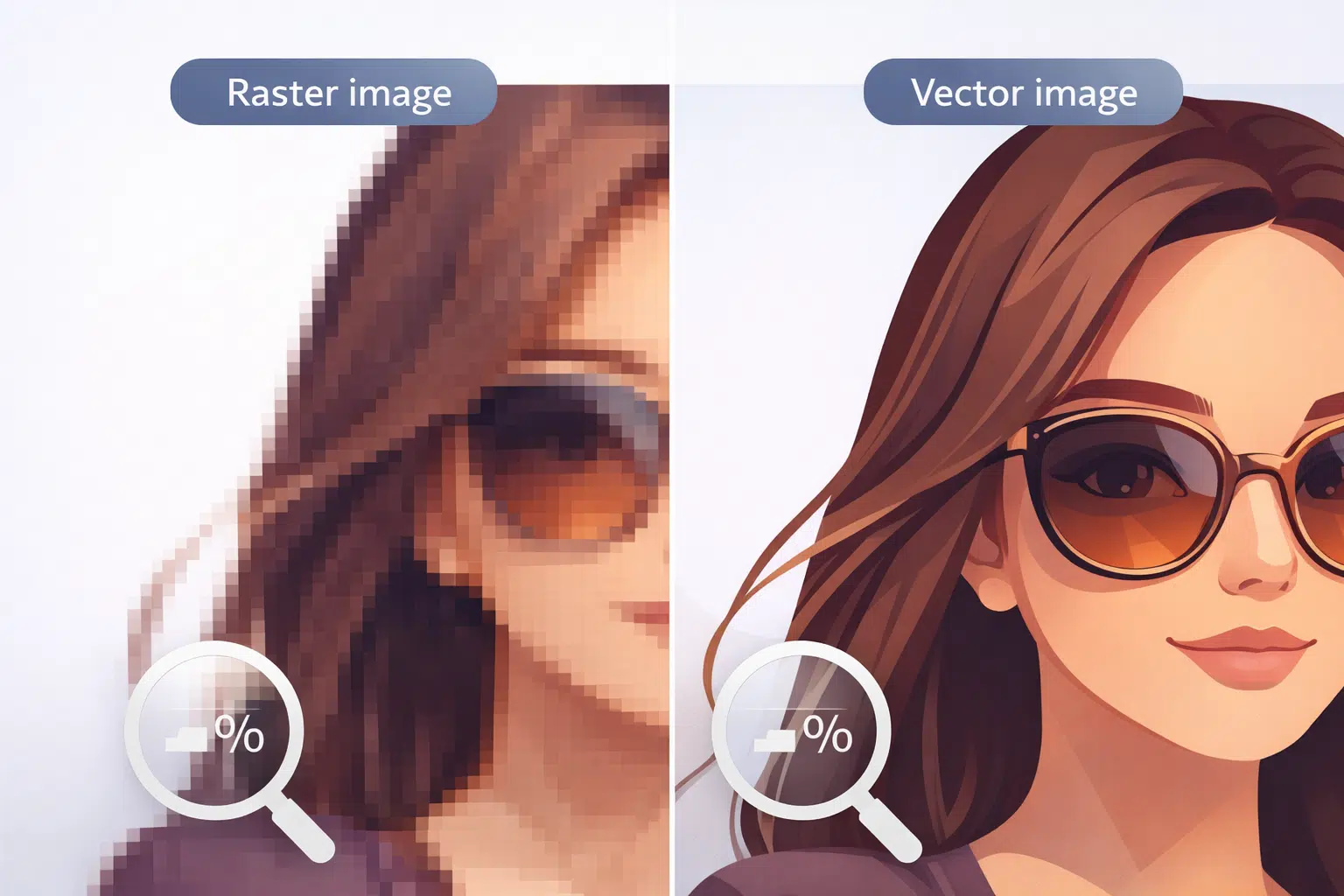
Pixels behave until you zoom in. Image-to-vector conversion turns a raster image (a grid of coloured pixels, like JPG or PNG) into vector shapes (paths and curves) so it stays sharp at any size.
Raster files are resolution-bound. If you enlarge a PNG, you are stretching the pixel grid, so the edges blur or block. Vectors store geometry, so the same curve can be rendered cleanly on a favicon, a poster, or a shop sign.
For web work, SVG is the default. W3C describes SVG as an XML-based language for 2D vector and mixed graphics that is designed to scale across resolutions. In production, you will also see AI (Adobe Illustrator), EPS, and PDF vectors.
Two practical things that need to be in place for a vector to be usable are node structure and colour handling. A poor trace might look fine at first, but then fall apart the moment you try to edit it because every edge is made up of hundreds of tiny points. That makes files heavier, slows down editors, and turns simple tweaks into a headache. If you keep the conversion clean, you’ll get smooth curves, fewer unnecessary nodes, and shapes that are organised into layers or groups. Colour is another problem: photos and complex gradients can explode into loads of overlapping shapes. If you’re going for a logo, icon or flat illustration, you want clean, limited colour regions, not a spaghetti pile of clipped shapes.
Why brands need image-to-vector conversion
If you work in marketing or product design, you’ll get asked for the same things at some point: We’ve got SVG icons, print-ready packaging, crisp logos, sticker sheets, app UI assets and merch graphics. Raster images don’t scale cleanly, but vectors do.
Vectors are great for making sure everything stays consistent. Your team can change a colour, adjust a stroke width, or swap a shape without having to re-render the whole image. This is important when your brand kit is updated, campaigns are modified, or localisation requires minor adjustments.
The other reason is speed. Before, converting an image to a vector meant tracing it by hand. Now, AI-assisted converters can produce a good base file quickly, so designers spend time refining, not rebuilding.

Best image-to-vector conversion software compared
| Tool | Best for | Output formats | Quality of trace | Editing workflow | Pricing model |
|---|---|---|---|---|---|
| Phygital+ | AI-assisted conversion + browser workflow | SVG, PNG (plus edits) | High (with prompt + edits) | In-browser editing and iterations | Free tools + paid tiers |
| Adobe Illustrator | Professional vector editing and control | AI, SVG, EPS, PDF | High (manual refinement) | Industry standard editor | Subscription |
| Vector Magic | Quick automatic tracing | SVG, EPS, PDF | Medium-High (simple graphics) | Limited, mostly export-first | Paid |
| Inkscape | Free vector editor + tracing | SVG, PDF | Medium (needs tweaking) | Manual clean-up in the editor | Free |
| Recraft | Vector generation and export | SVG, PNG | Medium-High (stylised) | Web app workflow | Free-Paid |
How to choose the right tool
Pick your tool based on what you are converting, not what is trendy.
- Logos, icons, flat illustrations: prioritise clean node structure, limited colours, SVG export.
- Hand-drawn sketches: prioritise smoothing controls and editable strokes.
- Photos: decide if you actually need a vector. Often, you need an upscaled raster instead.
- Teams and production: prioritise repeatability, browser workflow, and easy iteration.
A useful mental model: you are choosing between “trace and clean” vs “recreate in vector”. The more photo-like the input, the more you drift toward “recreate”.
Image to vector conversion workflow
Here is a practical workflow that avoids the usual mess.
- Prepare the image. Start with the cleanest source you can get. Remove backgrounds if required, increase contrast for line art, and simplify colours if your goal is a flat vector.
- Convert with a tool that matches your input. Use AI-assisted converters for speed, but keep control. For logos and icons, aim for fewer nodes and clean shapes. For sketches, preserve stroke character but smooth noise.
- Clean up the vector. Even good conversions need a pass: remove tiny stray shapes, merge overlapping regions, simplify paths, rename layers or groups.
- Export for your target. SVG for web, PDF/EPS for print pipelines, AI for Illustrator-heavy workflows.

Common mistakes that ruin vector files
- Converting low-resolution inputs and expecting miracles
- Tracing photos into a thousand shapes (uneditable chaos)
- Ignoring node count (file becomes heavy and slow)
- Exporting the wrong format for the target (SVG vs PDF vs EPS)
- Skipping clean-up (looks fine until a designer tries to edit it)
How Phygital+ helps with image-to-vector conversion
Most converters focus on export. Phygital+ is built around iteration. You can generate, adjust, and refine in-browser, which is useful when you need repeatable outputs for campaigns or brand kits.
Phygital+ also fits teams that want a central workflow: generate variants, keep a consistent style, and produce assets that are easier to reuse.
CTA: Explore Phygital+ tools and start creating scalable assets.
If you want a quick start, begin with:
- Tools hub: Phygital+ Tools
- Image generation: Free AI Image Generator
- Character identity: Free AI Character maker
FAQ
What is the difference between JPG/PNG and SVG?
JPG/PNG are raster formats made of pixels. SVG is a vector format that stores shapes and curves, so it stays sharp at any size.
Can AI convert any image to a perfect vector?
No. AI can produce a strong base, but complex photos and gradients usually need simplification or manual clean-up to become editable vectors.
What is the best format for web icons?
SVG is the standard for scalable, crisp web icons.
What is the best format for printing?
PDF or EPS are common in print pipelines, depending on your printer’s requirements.
How do I avoid messy vectors?
Use high-quality input, convert with the right settings, and always do a clean-up pass (simplify paths, remove noise, organise layers).
Is free software good enough for image-to-vector conversion?
For simple icons and logos, yes. For brand production and professional editing, paid tools often save time.
When should I upscale instead of vectorising?
If the source is a photo, and you only need it larger, upscaling a raster file is often more practical than tracing it into shapes.
Does Phygital+ export SVG?
Phygital+ includes tools aimed at creating and refining scalable assets in-browser. Check the tool page for current export options.